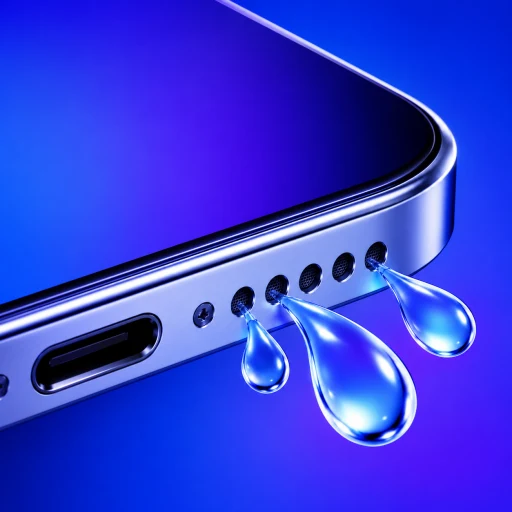
Why do people expect a built-in button?
Apple Watch visibly includes Water Lock and a water-ejection action. That makes it reasonable to remember “Apple has a water button” and look for the same control on iPhone. The confusion comes from applying one device’s feature to another.
On iPhone, you will not find a dedicated water-eject switch in Control Center or Settings. Search results often lead to third-party shortcuts, sound pages, videos, or apps. Those can play a useful tone, but they are not hidden Apple system controls.
What are the three practical iPhone options?
| Option | Main advantage | Main consideration |
|---|---|---|
| Shortcut | Can be triggered from Shortcuts or Siri | Inspect actions, permissions and file dependencies |
| Web or video sound | Starts without installing an automation | Limited output control and variable instructions |
| Purpose-built app | Guided sequence and explicit controls | Confirm its claims, privacy and product limits |
Choose the simplest option whose behavior you understand. During an urgent incident, familiarity and clear controls matter more than finding a supposed secret button.
Can Siri run water ejection?
Siri can run a shortcut by name. If you have a shortcut called “Water Eject,” say, “Siri, run Water Eject.” Siri can also open an installed app. Neither action means Siri contains a native water-ejection capability of its own.
Run a shortcut manually once before depending on voice control. The first run may ask for permission, reveal a missing audio file, or send sound to Bluetooth. Apple’s Shortcuts instructions explain how actions execute and when access prompts appear.
What should you do if the speaker is wet now?
Disconnect cables, remove the case, wipe the exterior, and identify whether the bottom loudspeaker or top receiver is affected. Point that opening downward toward a lint-free cloth. Run one controlled sequence at a strong but comfortable volume, wipe away droplets, and leave the phone in a dry area with airflow.
Do not charge the iPhone while it is wet. Apple’s wet-iPhone guidance covers speaker-side-down positioning, airflow, and charging precautions.
How do you avoid targeting the wrong output?
Test ordinary music, a call held to your ear, and speakerphone before choosing a tool. Muffled music and speakerphone usually point toward the bottom loudspeaker. Clear music with muffled calls points toward the top receiver. If all audio is missing, first check media volume, Bluetooth, AirPlay, Silent mode, and system sound.
This distinction matters because a generic shortcut or web sound may follow the normal media route. It can drive the bottom speaker while leaving the receiver unchanged. A tool with explicit output selection gives you a clearer, more controlled test.
What does the app not replace?
No shortcut, sound, or app can confirm that the inside of the phone is dry. It cannot remove residue from salt water or a sticky drink, repair a failed speaker, or clear a wet charging connector through sound.
If the phone has heat, power, display, camera, charging, or persistent audio problems, move beyond the missing-button question and follow device-care or service guidance.
Questions about iPhone water-eject options
Where is the water-eject button in iPhone Settings?+
There is no dedicated iPhone water-eject button in Settings. A shortcut or app can provide a water-ejection workflow, but it is not the Apple Watch Water Lock control.
Can Siri eject water from an iPhone?+
Siri can run a shortcut or open an app if you have configured one. Saying the phrase alone does not activate a hidden native iPhone water-eject function.
Why does Apple Watch have Water Lock?+
Apple Watch includes a system Water Lock workflow designed for its hardware and use cases. That control should not be assumed to exist or operate identically on iPhone.
What is the fastest iPhone option?+
Use a transparent workflow you already trust—a purpose-built local app or an inspected shortcut—then confirm audio routing, target the wet output and follow safe drying guidance.